Custom software for HVAC companies: a job management demo
We built a working web app for a made-up HVAC company in Dallas, TX. It takes a customer from "my AC is broken" to "job done and paid". It has online booking, a jobs board, scheduling, a phone view for technicians, quotes, invoices, customer records and yearly tune-up reminders. Every name, phone number and invoice in it is fake.
This is a demo we built to show our quality. It is not client work.
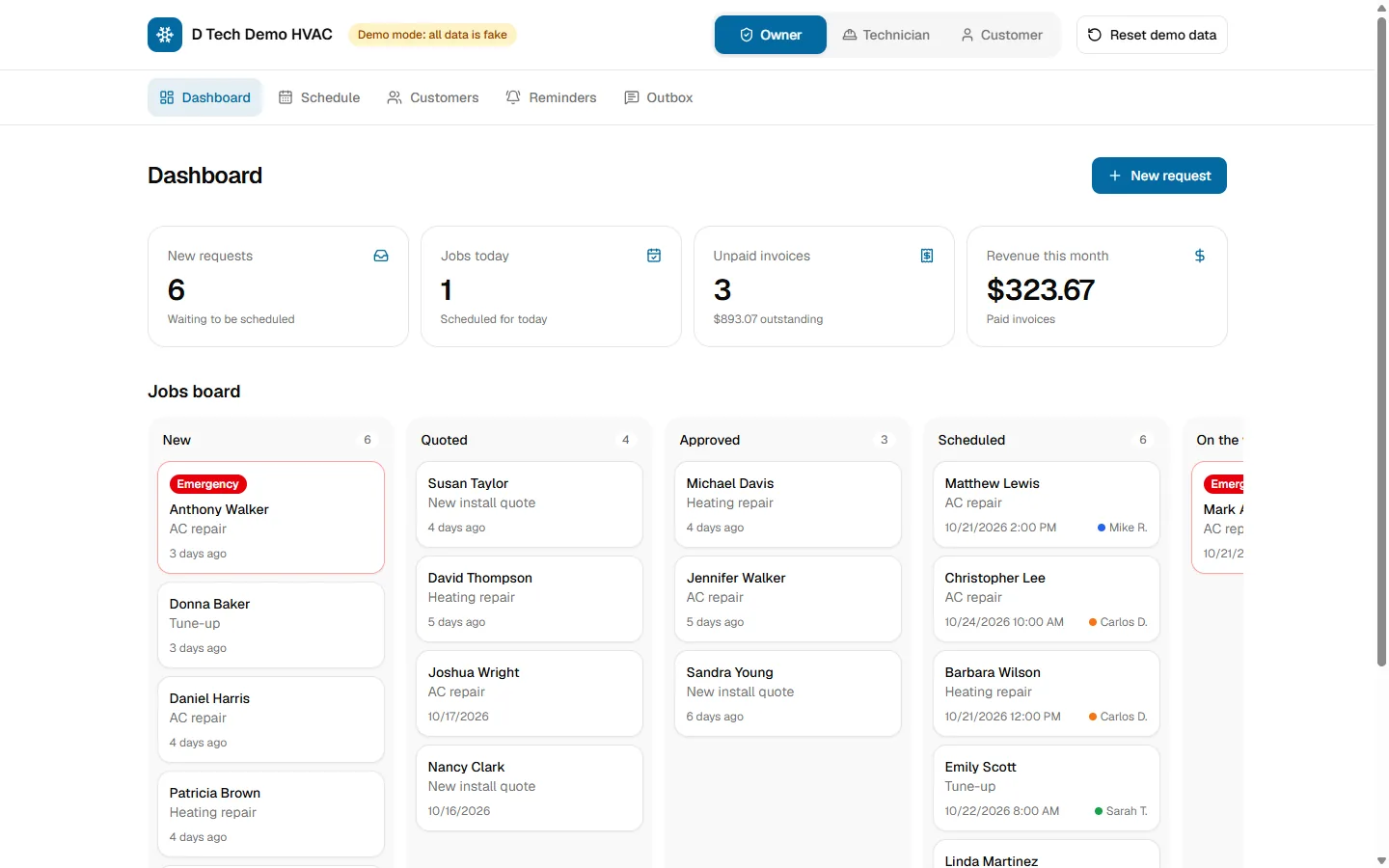
What this app is built to fix.
A small HVAC company can run on a notebook, a chat group and a lot of memory. That works until it does not. We built this demo around five common problems:
- A missed call becomes a lost job.
- The schedule lives in a notebook or a chat group.
- Quotes are written by hand and followed up late.
- Customers who need a yearly tune-up get forgotten.
- Nobody can quickly see a customer’s past jobs or equipment.
These are the problems we designed for. This is a demo, so we have no measured results to share.
What each person can do.
For customers
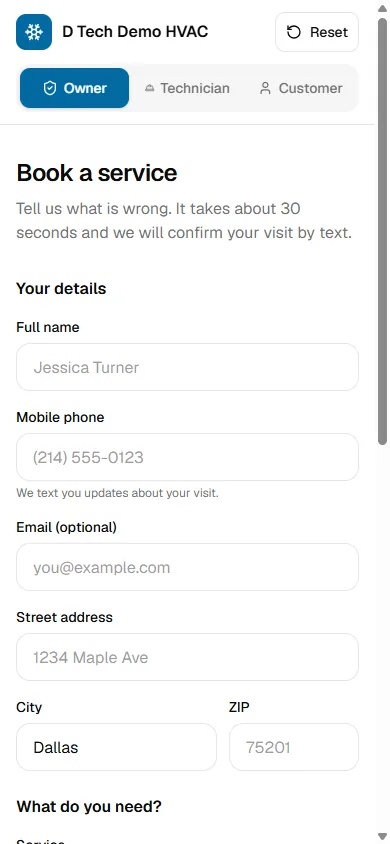
- Send a service request from a booking form. It asks for name, phone, address, service type, an emergency switch, a preferred date and time window, a description and an optional photo.
- See a confirmation page after the request is sent.
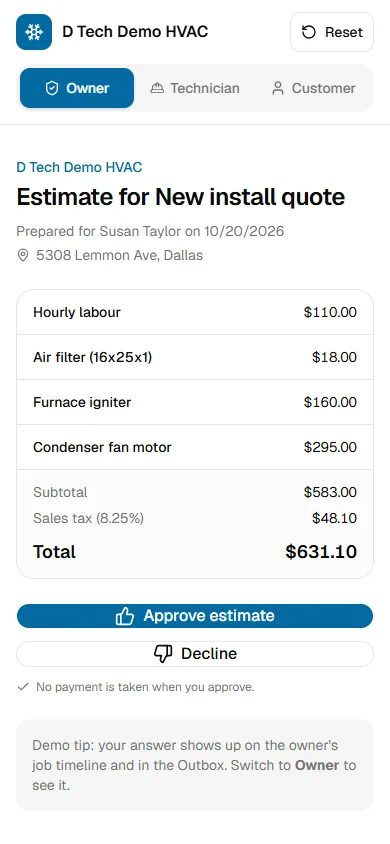
- Approve or decline a quote on its own page.
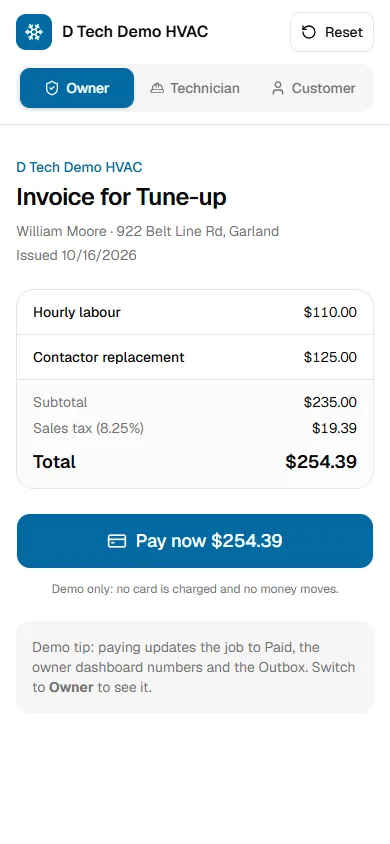
- Pay an invoice. In the demo, "Pay now" only marks the invoice as paid.
For the owner or dispatcher
- See four live numbers on a dashboard: new requests, jobs today, unpaid invoices and revenue this month.
- Follow every job on a board with one column per status. Emergency jobs carry a red tag.
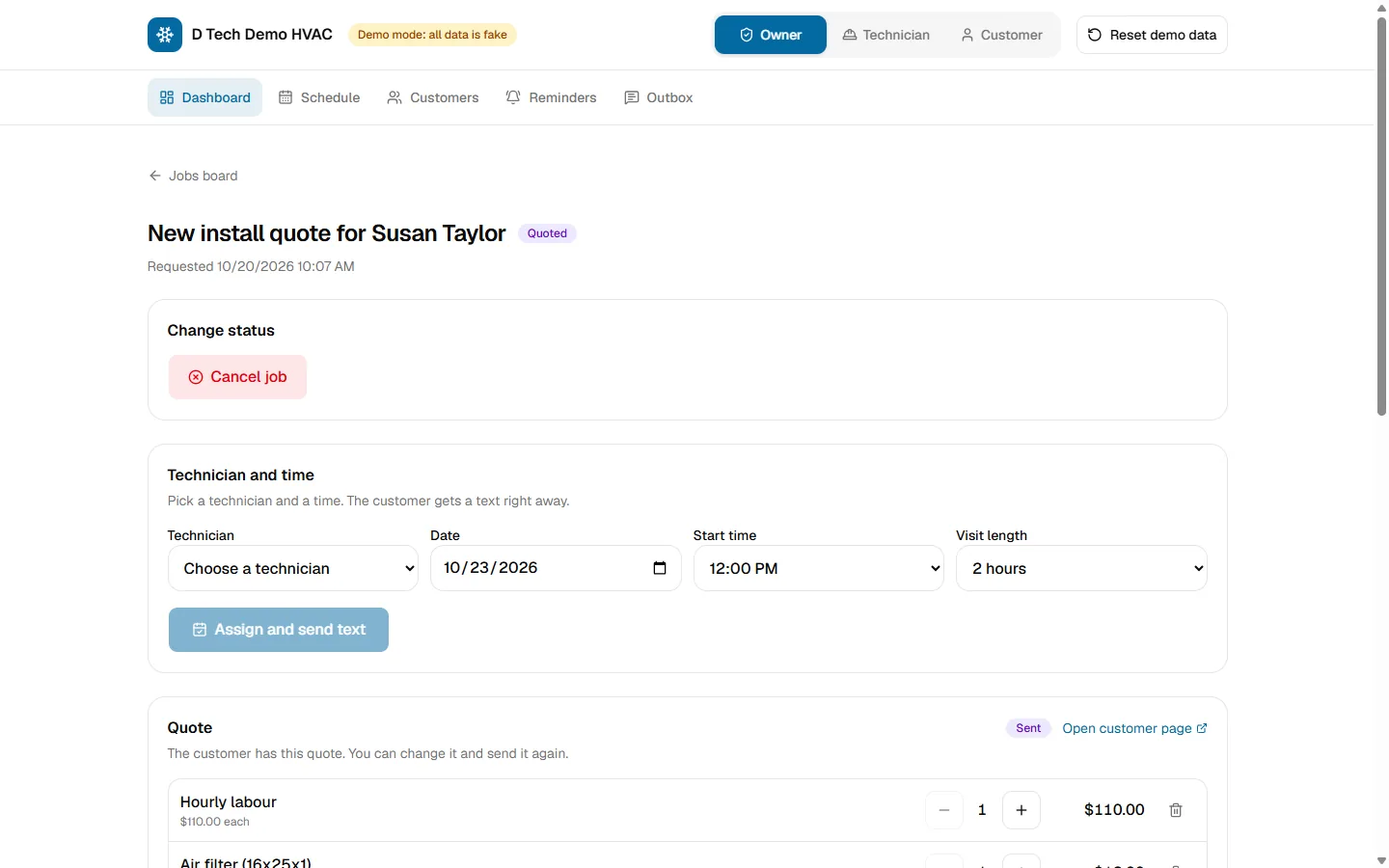
- Open a job to change its status, assign a technician and a time, and see a full activity timeline.
- Build a quote from a price list with tax and a running total. Save it as a draft or send it.
- Create an invoice from the approved quote or the parts used. Mark it paid for cash or check.
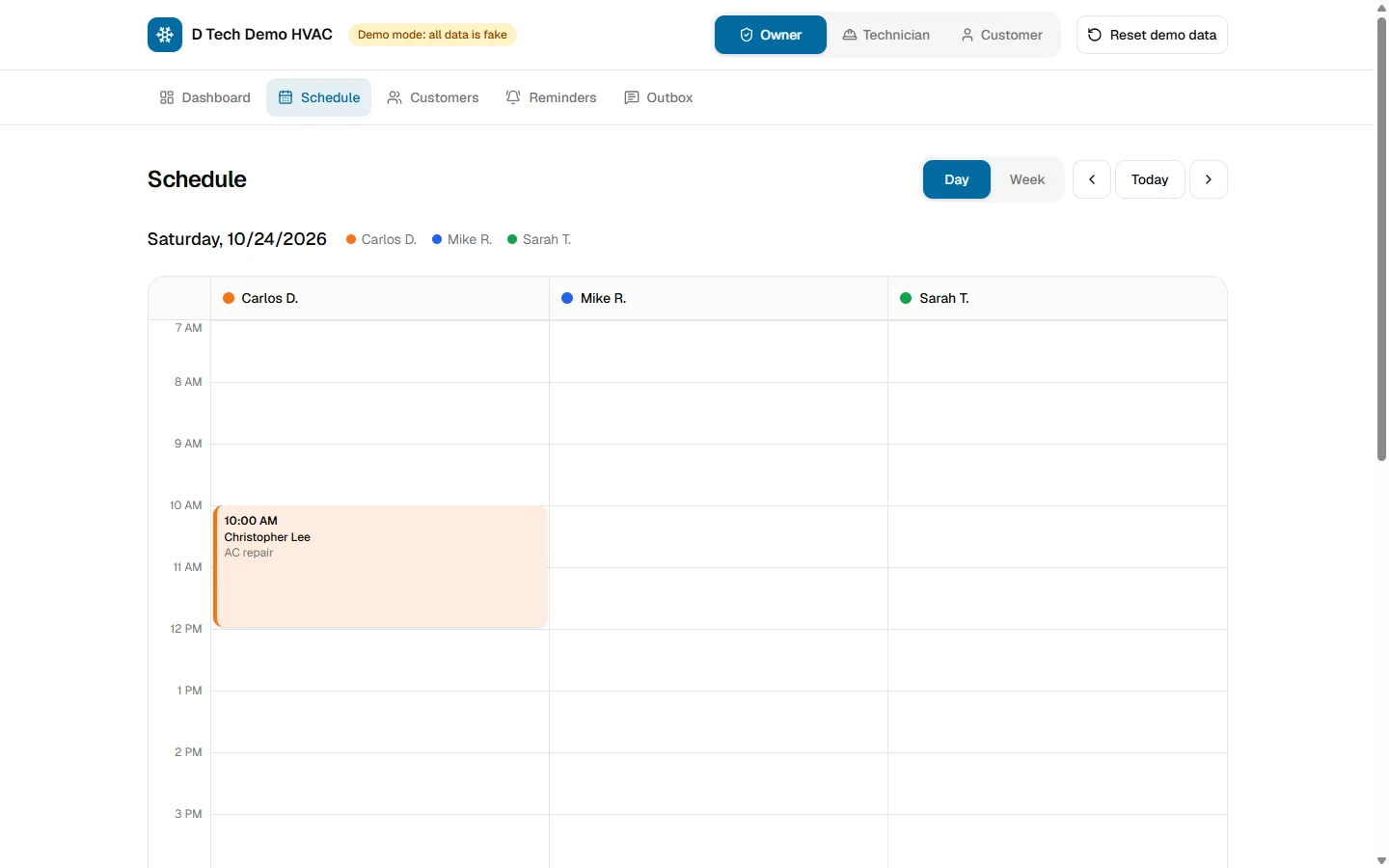
- See the schedule for each technician by day or week. Overlapping visits are outlined in red, and the app warns before a double booking.
- Search customers by name, phone, email, address or city. Each customer page shows contact details, equipment, job history and amounts paid.
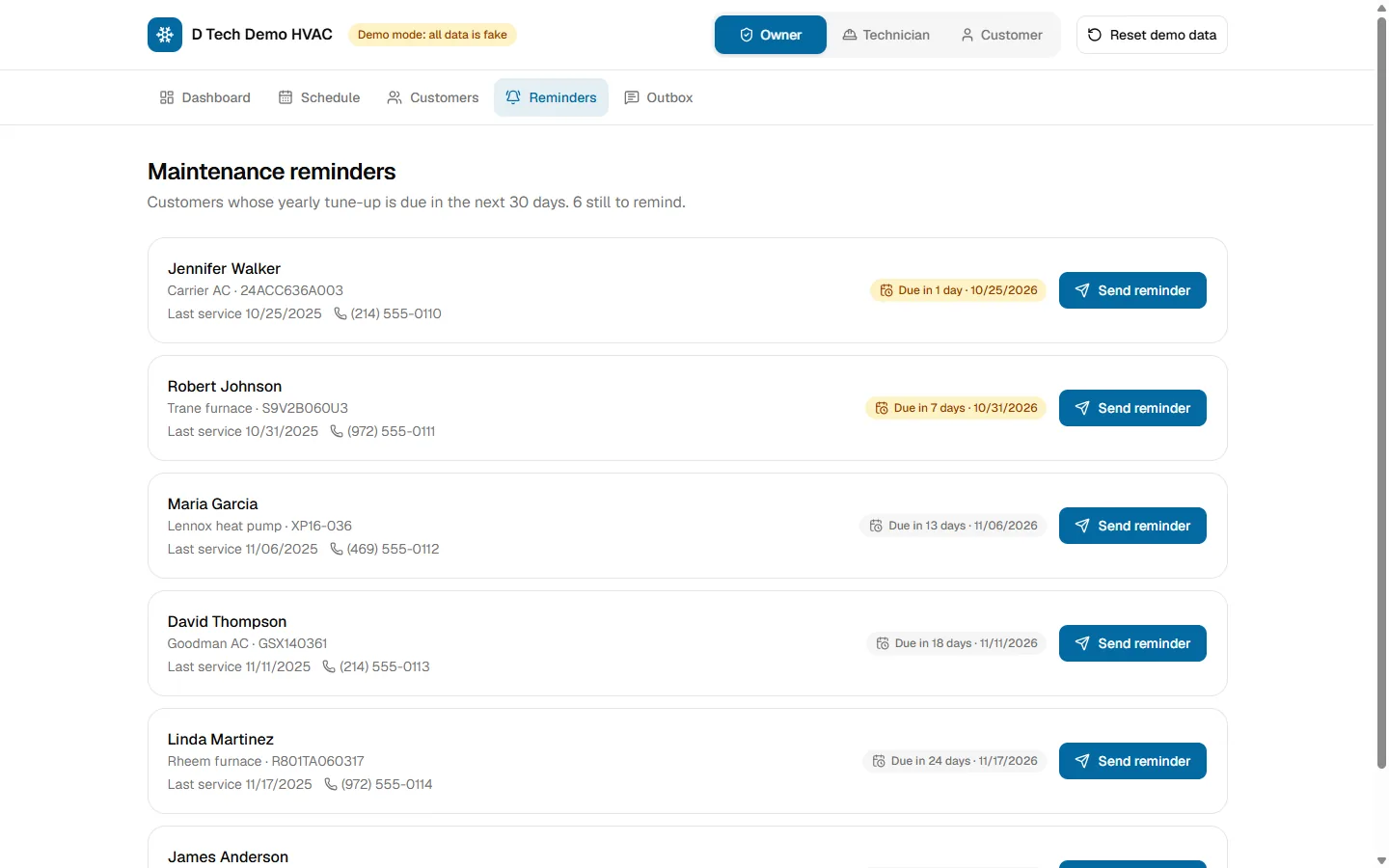
- Send tune-up reminders to customers whose yearly service is due in the next 30 days.
- Read an Outbox that shows every text and email the system would send.
For technicians
- Pick who they are and see their own jobs.
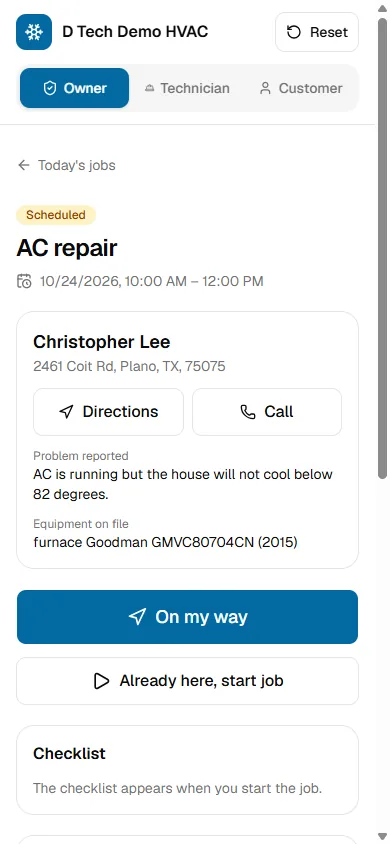
- Tap On my way, Start and Complete as the job moves along.
- Tick a five-step checklist, add notes and photos, and record parts used.
- Open Directions or Call with one tap.
A look at the screens.
Every name, phone number and email in these screens is sample data.
On a phone
The stack and a few details.
One place for every status change
A single function checks that a move is allowed, saves it, writes the timeline entry and queues the customer text. That keeps the timeline and the Outbox in step. A job has ten possible statuses, and it can be cancelled only before it is completed.
Double-booking check with an override
When the owner assigns a technician, the app checks for overlapping visits. If there is a clash, it warns and offers a "Book anyway" choice.
Times in Dallas time
All times show in the shop’s time zone, with daylight saving handled. That avoids the classic "the visit is an hour off" bug.
Automation you can see
Each event writes a text or email row to a messages table, which feeds the Outbox screen. It covers booking, emergency alerts, quotes, scheduling, "on the way", invoices, payment and tune-up reminders. Nothing is really sent.
What is fake or not built yet.
This is a demo, not a finished product. Here is what to know before you judge it.
- There is no login. Any visitor can open any screen and change data.
- There is no real text, email or card payment. Messages are rows in a table, and "Pay now" only marks an invoice as paid.
- There are no PDF quotes or invoices. They are pages on screen.
- There are no automated tests.
- The price list is seeded data. There is no screen to edit it.
- There are no reports, charts or CSV export.
- Pages load data when you open them. They do not update live.
- Equipment appears in the sample data only. There is no screen to add a unit yet.
- The "review request" text points to a page we have not built.
- The demo uses one shared database with fake data. A Reset button restores the starting data.
Open the live demo.
The demo runs online with fake data. There is no login. Use the role switch at the top to move between the customer, owner and technician views. Everyone shares one database, so other visitors may change what you see. Please do not type real personal details.
Want something like this for your business?
Book a free call. We will ask about your work, tell you what we would build first and give you an honest answer on whether we are the right fit.
Common questions about this demo.
We cannot give one number for every company. Many subscription tools charge every month and per user. Custom software costs more up front, then you own the code. The right choice depends on how different your way of working is. Try the free cost estimator, or book a call and we will scope it and give you an exact number first.
Yes. In the demo, customers can send a service request, approve or decline a quote and pay an invoice. Those screens are built for phones, and you can see phone-width screenshots on this page.
In the demo, tapping On my way queues a text, and you can read it in the Outbox. It is not really sent. Sending real texts needs an SMS provider and extra work, which we would scope with you.
When the owner assigns a visit, the app checks for overlaps for that technician and shows a warning. The owner can still choose "Book anyway". The schedule view outlines overlapping visits in red.
Yes. The demo keeps its name, colour, logo, owner, phone, city and tax rate in one settings file, so re-branding is quick.
This demo does not. Real card payments and real texts are extra work: accounts with the providers, secure keys, testing, and rules for failures. We would add them as part of a real project and price them after a free scoping call.
Related links.
- See our other demo project: Equipment Rental Booking App
- Get a rough range for your idea with the free web app cost estimator
- Read: Custom Web App Cost in 2026: Pricing & Scoping Guide
- Read: Website vs Web App: How to Choose for Your Business
- Browse all our work
Written by Dharanidharan S. Last updated .